Object Manager
The best documentation is the one you don't write
SF Explorer Object Manager retrieve the usage of your org objects and provide:
- 1️⃣ Grouping and filtering based on the different exposed attributes (category, usage, record types...)
- 2️⃣ API Name and associated documentation - a click on the API Name provide extra detail on the object
- 3️⃣ Usage with associated percentage in org
- 4️⃣ The number of custom fields
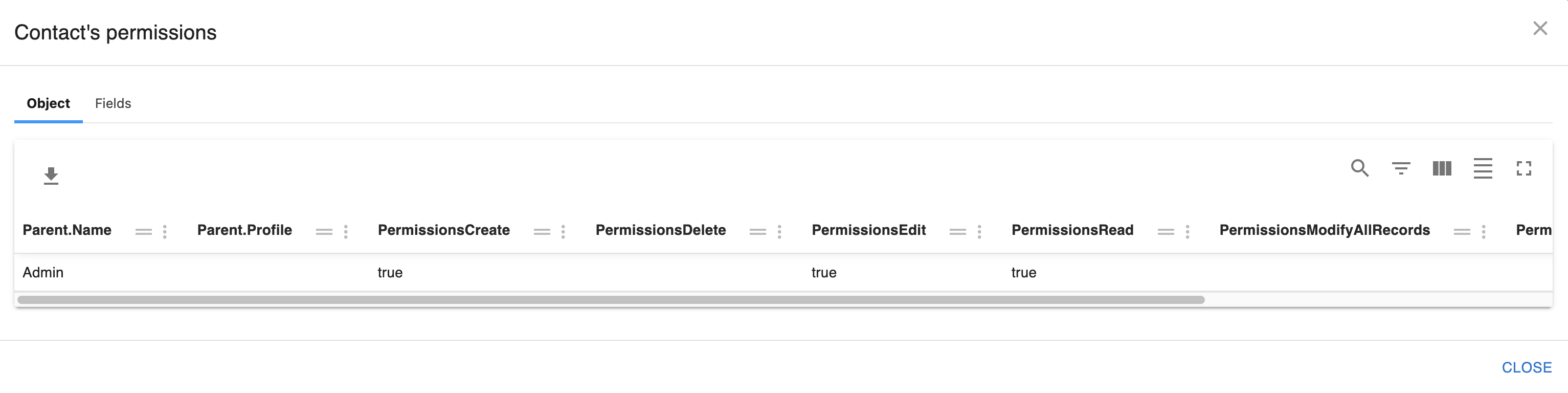
- 5️⃣ Available permissions based on a given profile / list of permission set groups
- 6️⃣ Sharing model
Each element listed above can be clicked to provide additionnal detail - see below
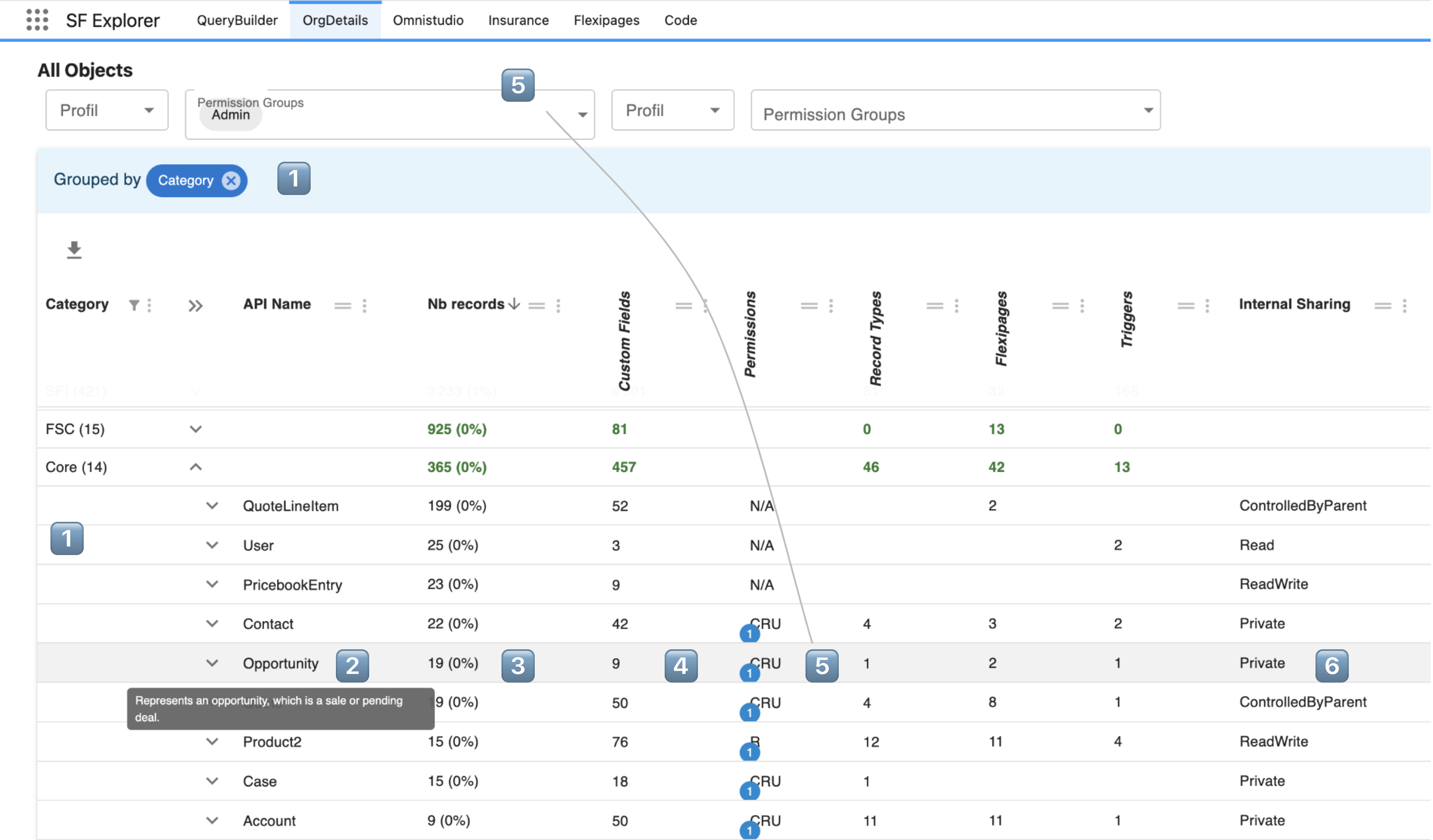
1️⃣ Grouping and filtering
The proposed vizualisation is just an example - you can use excel like feature to regroup, sort or filter your data
2️⃣ Object detail
Your salesforce model can be complex like the InsurancePolicy FSC object below.
A node can be click to zoom on the associated object. A tooltip is also providing additional contextual information.
Note that the color of each node is associated to the selected profil/permission set group selected above (see 5️⃣ Object Permissions)

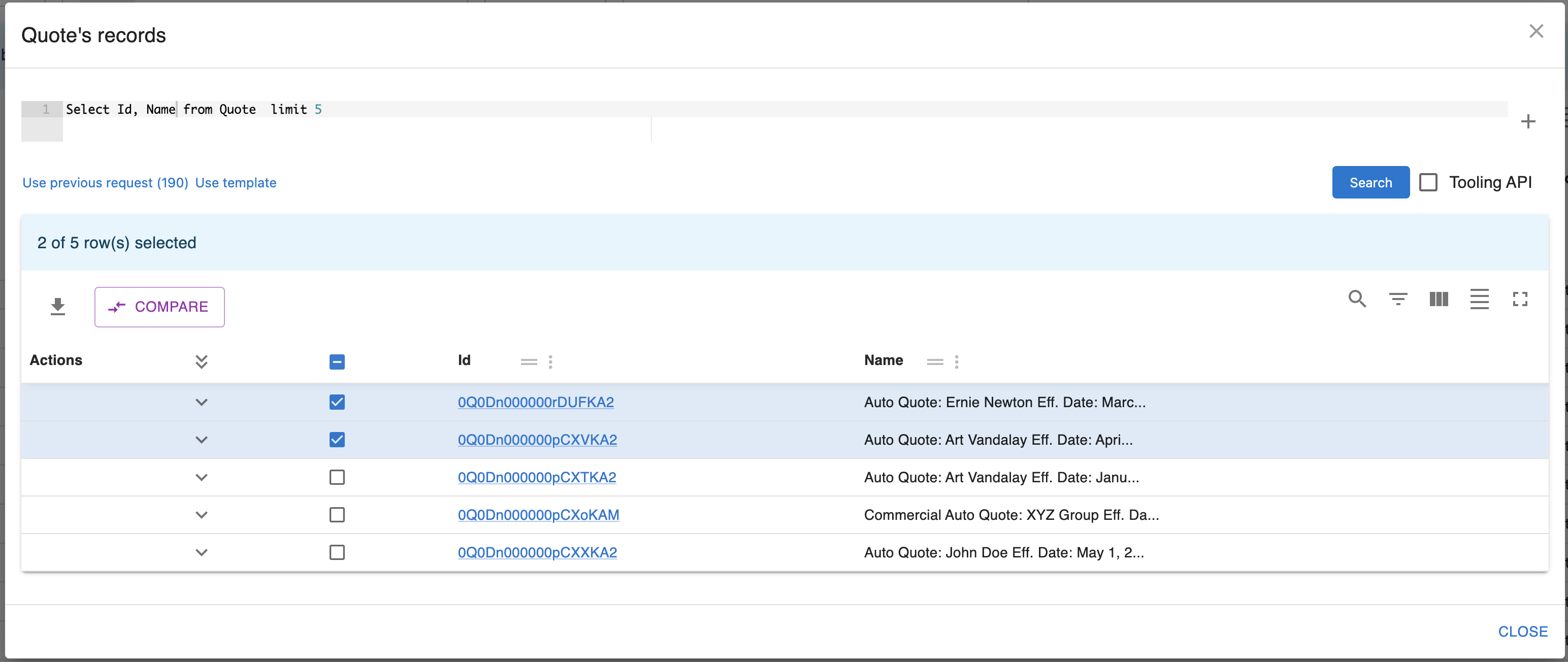
3️⃣ Nb records
Clicking on the number of record of a given object gives you a quick access to the query builder for you to search or compare records of that given object
4️⃣ Custom fields
Custom fields columns gives you information on the level of customization your object contains
5️⃣ Object Permissions
To ease the transition to permission set groups, SF Explorer let you pick a profile and a list of permission set group to view/compare/analyze the impact on your model.
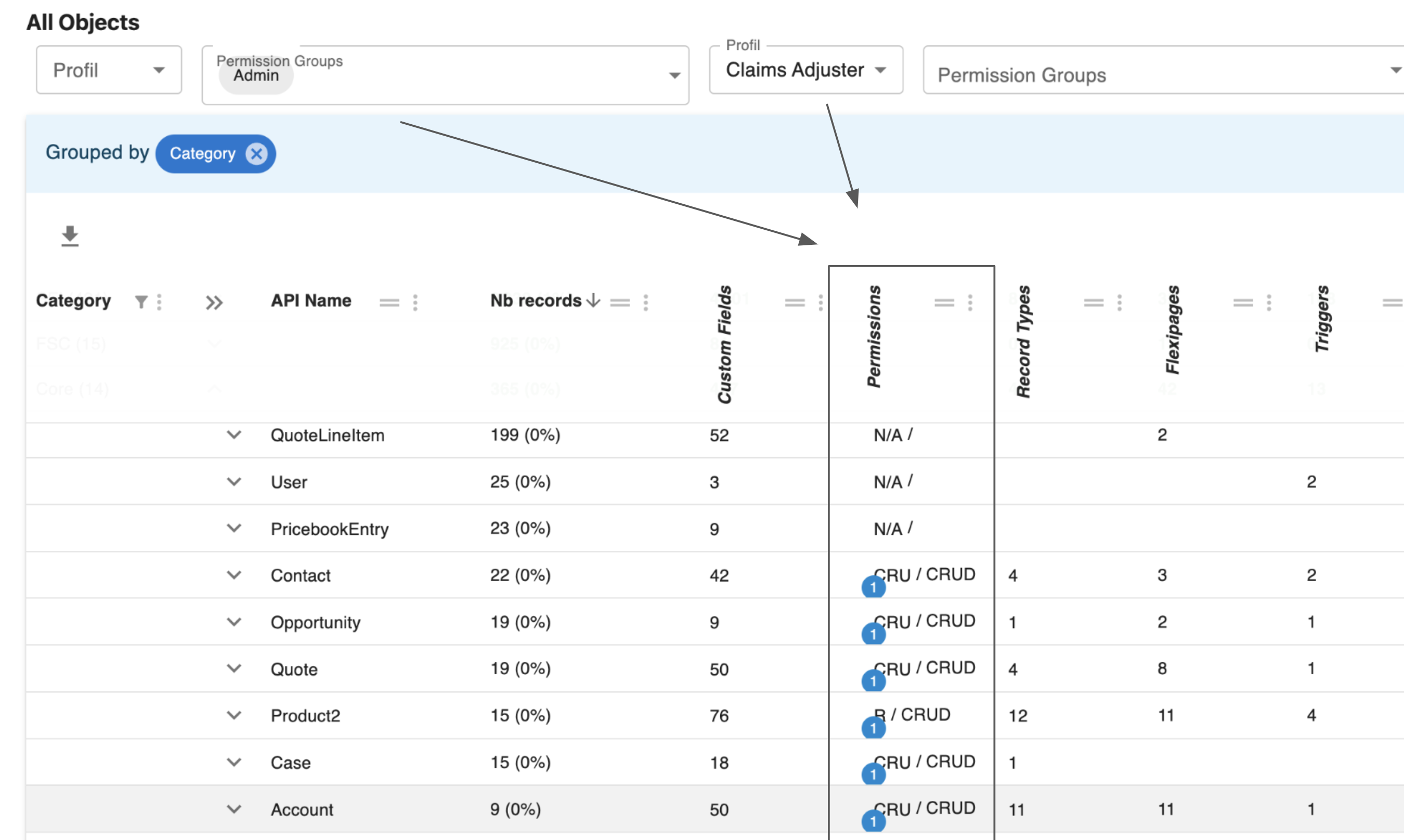
Once picked you can review the impact on each object with the Permissions column.
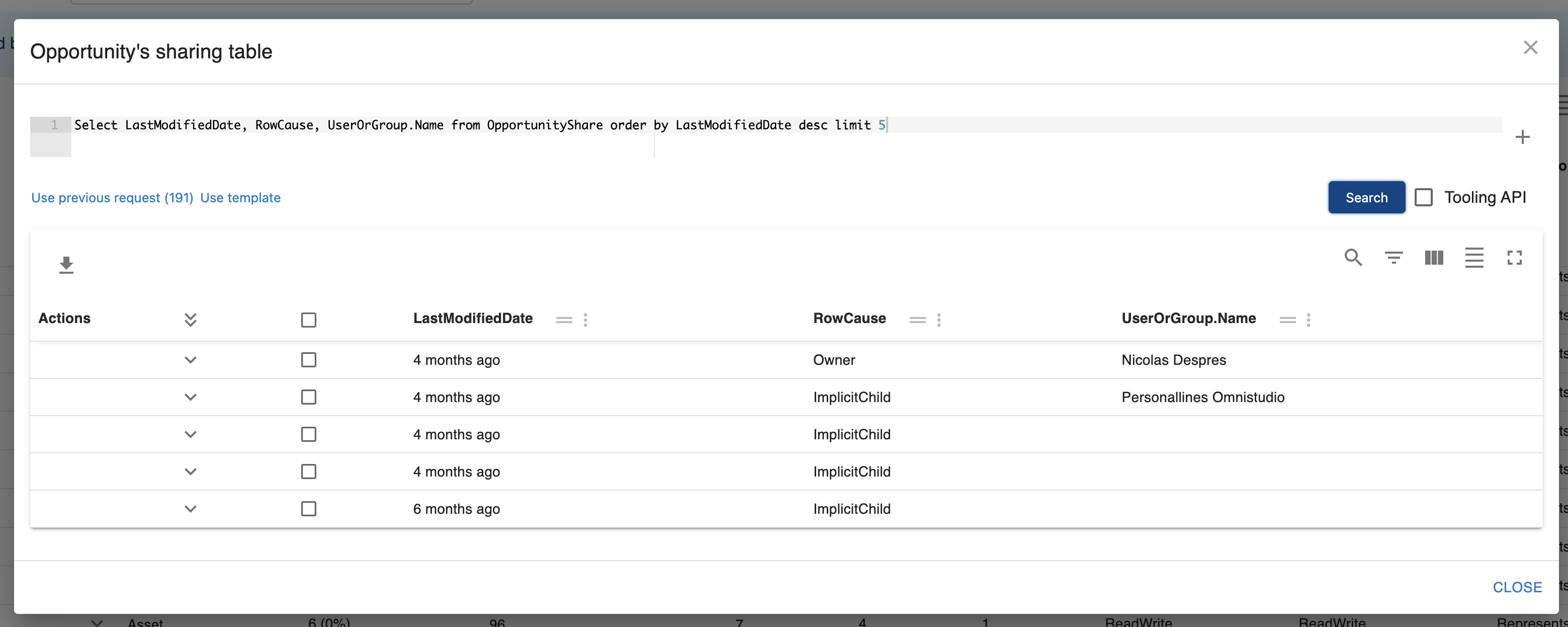
6️⃣ Sharing model
When the sharing model is Private or Public Read Only, SF Explorer provide a quick access the associated sharing table by clicking on the sharing rule